
The landscape of home entertainment has shifted dramatically. In 2026, the traditional cable box is becoming a relic of the past, replaced by agile, high-performance streaming devices. For viewers in Sweden and across the European Union, the Amazon Firestick has emerged as the gold standard for accessing premium content. Whether you are a die-hard sports fan wanting to catch every goal in the Premier League or a cinema enthusiast seeking Ultra HD clarity, knowing how to properly configure 4K Uplay IPTV is the key to unlocking a world-class viewing experience.
This comprehensive guide will walk you through the technical nuances, hardware requirements, and step-by-step configurations needed to turn your Firestick into a powerhouse for 4K IPTV. We focus on a compliant, tech-first approach that ensures stability, privacy, and the highest possible visual fidelity.
Understanding the Shift to 4K IPTV in the EU
Digital broadcasting in Europe has undergone a massive transformation. With the widespread rollout of 10G fiber optics in Nordic countries and the evolution of the AV1 codec, streaming live television is no longer about “just getting a signal.” It’s about the quality of that signal.
4K IPTV represents the pinnacle of this evolution. Unlike old-school SD or even standard HD streams, a true 4K stream provides four times the resolution of 1080p. For users of Uplay IPTV, this means seeing the blades of grass on a football pitch or the fine textures in a cinematic masterpiece with breathtaking realism. But to achieve this, your hardware—specifically your Firestick—must be optimized to handle the heavy data throughput.
Why the Firestick is the Preferred Choice for Uplay IPTV
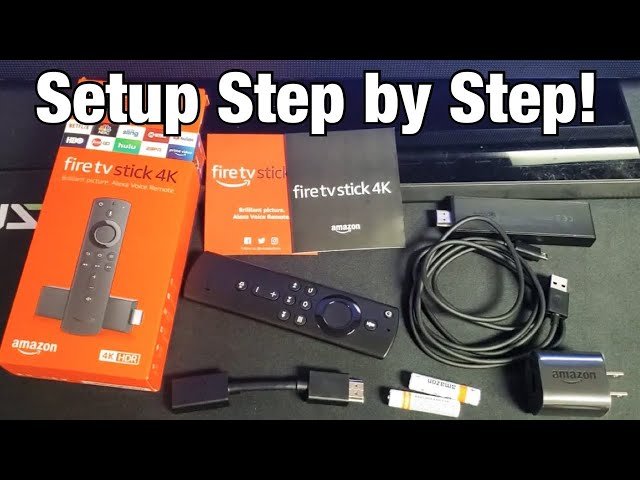
The Amazon Firestick, particularly the Fire TV Stick 4K Max (2nd Gen) and the newer 2026 iterations, offers a unique blend of affordability and raw power. Here is why it is the top choice for EU streamers:
- Hardware Acceleration: Modern Firesticks include dedicated hardware decoders for HEVC (H.265) and AV1, which are essential for smooth 4K IPTV playback.
- Portability: Its “plug-and-play” nature makes it ideal for users who travel between Stockholm, Berlin, or Paris and want their home setup to follow them.
- App Ecosystem: Beyond official stores, the Firestick’s Android-based OS allows for the installation of professional-grade media players like TiviMate and IPTV Smarters Pro.
- Integration: It supports advanced features like Wi-Fi 6E and Dolby Vision, ensuring that if your provider—like Uplay IPTV—sends a high-quality signal, your hardware won’t be the bottleneck.
Pre-Setup: Network Requirements for Stable 4K Streaming
Before we dive into the software installation, we must address the most common cause of frustration: buffering. To enjoy 4K Uplay IPTV without interruptions, your home network in Sweden or the EU must meet specific criteria.
1. The 25 Mbps Rule
For a single 4K IPTV stream, a consistent download speed of 25 Mbps is the bare minimum. However, in a modern household where multiple devices are connected, we recommend a “headroom” of at least 50-100 Mbps. Fortunately, Swedish ISPs like Telia and Tele2 consistently provide the infrastructure necessary for these speeds.
2. Wired vs. Wireless (The Ethernet Advantage)
While Wi-Fi 6 is impressive, nothing beats a wired connection for stability. If you are serious about 4K Uplay IPTV, consider using an Amazon Ethernet Adapter. A physical cable eliminates “jitter” and signal interference from neighboring apartments, which is common in dense European cities.
3. Latency and Ping
For live sports, latency (ping) is more important than raw speed. A ping of under 20ms to your local exchange ensures that the “Live” broadcast is actually live, reducing the delay between the action and your screen.
Step-by-Step Guide: Setting Up Uplay IPTV on Firestick
Setting up your device involves preparing the environment and then installing a professional media player to interface with the 4K IPTV servers.
Phase 1: Preparing the Firestick Environment
By default, the Firestick restricts the installation of apps from outside the Amazon Appstore. To use high-performance IPTV players, you must adjust your settings.
- Navigate to Settings: Use your remote to go to the gear icon on the home screen.
- My Fire TV: Scroll down and select “My Fire TV.”
- Developer Options: If you don’t see this, go to “About” and click your device name 7 times to unlock it.
- Install Unknown Apps: Turn this ON for the “Downloader” app (which we will install next).
Phase 2: Installing the “Downloader” Utility
Go to the “Find” or “Search” icon on your Firestick home screen and type “Downloader.” This orange-icon app is a browser and file manager that allows you to download the APK files for media players. Install it and open it.
Phase 3: Choosing the Right Media Player
For a premium service like Uplay IPTV, you want a player that supports 4K rendering and EPG (Electronic Program Guide) integration.
Option A: TiviMate (Recommended for Power Users)
TiviMate is arguably the best IPTV player for Firestick. It offers a cable-like interface and advanced recording features.
- In the Downloader app, enter the official URL for TiviMate.
- Install the APK and open the app.
- Select “Add Playlist” and choose “Xtream Codes API.”
Option B: IPTV Smarters Pro (Best for Beginners)
This is a versatile, user-friendly player that works across many devices.
- Enter the Smarters Pro download code in the Downloader app.
- Once installed, select “Login with Xtream Codes API.”
Phase 4: Configuring Your 4K Uplay IPTV Credentials
After selecting your player, you will need to enter the credentials provided by Uplay IPTV. Usually, this consists of:
- Server URL: (e.g.,
http://uplay-example.com:8080) - Username: Your unique ID.
- Password: Your secure key.
Once entered, click “Add User” or “Connect.” The app will take a moment to download the channel list and the EPG.
Optimizing Firestick for 4K Performance
Even with a high-end 4K Uplay IPTV subscription, the Firestick’s limited resources can sometimes cause “stuttering.” Use these professional tips to keep your device running at peak performance.
1. Clear Cache Regularly
Every time you stream, the Firestick stores temporary data. To prevent slowdowns:
- Go to Settings > Applications > Manage Installed Applications.
- Find your IPTV player and select “Clear Cache.” (Note: Do not click “Clear Data” unless you want to re-enter your login).
2. Disable Background Data Monitoring
Amazon tracks usage data by default, which consumes CPU cycles.
- Go to Settings > Preferences > Privacy Settings.
- Turn off “Device Usage Data” and “Collect App Usage Data.”
3. Use an External Video Player
Some IPTV players allow you to use “External Players” like VLC or MX Player. These apps are often better at “hardware decoding” high-bitrate 4K IPTV streams than the built-in players. In your IPTV app settings, look for “Integration” or “External Player” and toggle it on.
The Importance of Privacy and Security in the EUROP
Streaming in the European Union requires an understanding of digital privacy. While Uplay IPTV provides the technology for your viewing, your Internet Service Provider (ISP) may sometimes “throttle” your connection if they detect high-bandwidth video streaming during peak hours (like a Champions League final).
Why Use a VPN for 4K IPTV?
- Prevent Throttling: A VPN masks your traffic, so your ISP cannot see that you are streaming 4K IPTV, preventing them from artificially slowing down your speed.
- GDPR Compliance: Using a VPN adds a layer of encryption, keeping your viewing habits private and secure.
- Stability: Sometimes, routing through a VPN server closer to the IPTV source can actually reduce buffering by avoiding congested network paths.
4K IPTV and the Swedish Market: A Match Made in Heaven
Sweden is uniquely positioned for the 4K Uplay IPTV experience. With nearly 95% of households having access to high-speed fiber, the technical barriers that exist in other parts of the world are non-existent here.
Swedish viewers often prioritize sports, particularly ice hockey (SHL) and football. 4K Uplay IPTV offers these events in high frame rates (60fps), which is crucial for fast-moving action. When setting up your Firestick, ensure that your “Display Settings” are set to “Match Original Frame Rate” to avoid the “soap opera effect” or micro-stutters during games.
Troubleshooting Common Issues
Even the best setups encounter hiccups. Here is how to fix them:
| Issue | Potential Cause | Fix |
| Buffering on 4K channels | Insufficient Bandwidth | Switch to 5GHz Wi-Fi or use an Ethernet adapter. |
| “Failed to Login” | Typo in Credentials | Check your server URL, username, and password for case-sensitivity. |
| No Sound on Some Channels | Missing Codec | Change the “Audio Decoder” to “Hardware” in app settings. |
| EPG Not Loading | Sync Issue | Refresh the EPG manually in the player settings. |
Quick Takeaways for Firestick Users
- Hardware Matters: Use a Firestick 4K Max for the best 4K Uplay IPTV experience.
- Wired is King: Use an Ethernet adapter to eliminate Wi-Fi interference.
- Player Choice: TiviMate is the gold standard for a professional interface.
- Optimization: Clear your app cache weekly to maintain device speed.
- Privacy: Use a reputable VPN to prevent ISP throttling during major sports events.
- Speed: Ensure your connection is at least 25-50 Mbps for Ultra HD content.
Conclusion
Setting up 4K Uplay IPTV on your Firestick is more than just installing an app; it is about configuring an entire ecosystem for high-fidelity entertainment. By following this guide, viewers in Sweden and the EU can enjoy the full potential of 4K IPTV technology—from the crystal-clear imagery of nature documentaries to the heart-pounding action of live sports.
With the right hardware, a stable fiber connection, and a professional-grade media player, your Firestick becomes a portal to a limitless world of content. As we move further into 2026, the quality of your streaming experience is limited only by your setup.
FAQs
1. Is my old Firestick compatible with 4K Uplay IPTV?
While older models can run IPTV apps, only the “4K” and “4K Max” models have the hardware necessary to decode and display 4K IPTV signals. Standard Firesticks will downscale the quality to 1080p.
2. Why do I experience buffering only during live sports?
This is often due to ISP throttling. During high-traffic events, ISPs may limit bandwidth to video streaming services. Using a VPN can often bypass this restriction and restore your 4K Uplay IPTV quality.
3. How do I get an EPG for my channels?
Most premium services like Uplay IPTV include an EPG link. In your player settings (TiviMate or Smarters), ensure the “EPG URL” is correctly mapped to your playlist.
4. Can I use one subscription on multiple Firesticks?
This depends on your specific 4K Uplay IPTV plan. Most providers offer multi-connection packages that allow you to stream on several devices simultaneously.
5. What is the best internet provider in Sweden for IPTV?
Providers that offer fiber-to-the-home (FTTH) like Telia, Bahnhof, and Tele2 are excellent for 4K IPTV due to their low latency and high symmetrical speeds.
Engagement Prompt
Did this guide help you get your 4K setup running? We’d love to hear which media player you prefer or any tips you have for fellow streamers in the EU! Drop a comment below and share your experience.
References
- Amazon Device Support: Technical specifications for Fire TV Stick 4K Max.
- PTS (Post- och telestyrelsen): Reports on broadband and fiber expansion in Sweden.
- VideoLAN: Documentation on HEVC and AV1 hardware decoding for Android devices.
- TiviMate Official Community: Best practices for playlist management and EPG synchronization.
Internal Link Suggestions
- Looking for the best hardware? Check out our Top 5 Devices for 4K IPTV in 2026 on UplayIPTV.com.
- Struggling with speed? Read our guide on How to Optimize Your Home Network for Ultra HD Streaming.
- New to the world of IPTV? See our Beginner’s Guide to IPTV Protocols and Formats.
Would you like me to generate a specific set of metadata (Meta Description and Alt Text descriptions) for the images you plan to use with this article?