
The transition from standard high-definition to Ultra High Definition (4K) has transformed how sports fans and cinema enthusiasts consume media. In Sweden and across the EU, where high-speed fiber-optic infrastructure is the standard, the demand for 4K Uplay IPTV has reached an all-time high.
Whether you are trying to catch every detail of a Champions League final or want the most immersive experience on your Sony Bravia or Amazon Firestick, setting up your environment for 4K is about more than just having a high-res screen. It requires a synergy between your hardware, your network, and your software configuration.
This comprehensive guide will walk you through everything you need to know about optimizing Uplay IPTV for a premium 4K experience, specifically tailored for the European market and the latest streaming hardware available in 2026.
1. The Evolution of 4K IPTV in the EU Market
The European streaming landscape has shifted. With countries like Sweden leading the world in fiber-to-the-home (FTTH) penetration, the technical barriers to 4K IPTV have largely vanished. However, 4K content requires significantly more data—roughly four times the pixels of 1080p. To enjoy Uplay IPTV without the dreaded buffering wheel, users must understand the delivery chain from the server to the screen.
2. Why Choose Uplay IPTV for Ultra HD Content?
When discussing 4K Uplay IPTV, the conversation centers on bitrate and stability. Unlike standard providers that might compress their “4K” signals to save bandwidth, a premium setup ensures that the HEVC (High-Efficiency Video Coding) streams remain intact. This results in sharper textures, more vibrant colors via HDR (High Dynamic Range), and a smoother frame rate that is essential for live sports.
3. Essential Hardware: Choosing the Right 4K Player
Not all streaming sticks are created equal. To decode 4K streams efficiently, you need a device with a powerful processor and dedicated hardware decoding for H.265.
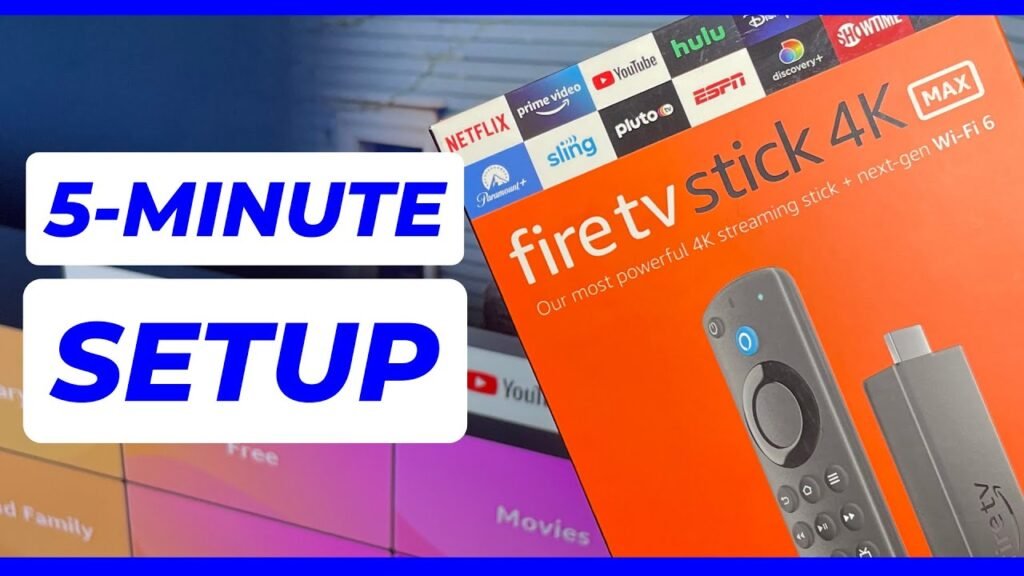
- Amazon Firestick 4K Max (2nd Gen): Currently the gold standard for EU users due to its Wi-Fi 6 support and aggressive pricing.
- Nvidia Shield TV Pro: Still the king for power users, offering AI upscaling that can make even non-4K content look near-UHD.
- Apple TV 4K (2025/2026 models): Known for the smoothest UI and excellent color accuracy.
4. Optimizing Your Firestick for 4K Uplay IPTV
If you are using a Firestick, the first step to a 4K IPTV experience is clearing the overhead.
- Enable High Contrast: This can sometimes help with UI visibility on 4K panels.
- Match Original Frame Rate: Go to Settings > Display & Sounds > Match Original Frame Rate. This prevents “judder” during fast-paced football matches.
- Clear Cache: 4K streams utilize significant RAM; keeping your device lean ensures the player has the resources it needs.
5. Smart TV Integration: Samsung, LG, and Android TV
Many Swedish households prefer using the built-in apps on their Smart TVs. While convenient, the internal processors of older Smart TVs can struggle with high-bitrate 4K Uplay IPTV streams. If you are using a modern LG (webOS) or Samsung (Tizen), ensure you are using a wired Ethernet connection via a USB-to-Ethernet adapter, as internal TV network cards are often capped at 100 Mbps.
6. The Importance of HEVC (H.265) Decoding
The secret behind 4K IPTV is HEVC. This compression standard allows high-quality video to be transmitted at manageable bitrates. When setting up your player (like TiviMate or IPTV Smarters), always ensure that “Hardware Decoding” is active. This offloads the work from the software to the device’s GPU, preventing overheating and frame drops.
7. Internet Speed Requirements for Sweden and the EU
In Sweden, providers like Telia and Bahnhof offer speeds that easily handle 4K. However, for a stable 4K Uplay IPTV experience, you need:
- Minimum: 25 Mbps (for a single 4K stream).
- Recommended: 100 Mbps+ (to account for other devices on the network).
- Ping/Latency: Under 20ms is ideal for live sports to ensure the “live” aspect is as close to real-time as possible.
8. Wired vs. Wireless: Winning the Battle Against Buffering
Even with Wi-Fi 6, a physical cable is superior. For Uplay IPTV, a wired connection eliminates the “jitter” caused by household interference (microwaves, baby monitors). If you must use Wi-Fi, ensure your router is on the 5GHz or 6GHz band and placed within clear line-of-sight of your streaming device.
9. Choosing the Right IPTV Player for 4K
The software you use to load Uplay IPTV acts as the engine.
- TiviMate (Premium): Widely considered the best interface for 4K, offering a highly customizable EPG and excellent buffer management.
- IMPlayer: Great for those who want a “cable box” feel with advanced 4K scaling options.
- GSE Smart IPTV: A solid choice for iOS and Apple TV users in the EU.
10. Understanding Bitrate and Its Impact on Quality
A 4K resolution is meaningless if the bitrate is low. 4K Uplay IPTV focuses on maintaining a high bitrate (often 15–25 Mbps). This prevents “macroblocking” in dark scenes of movies or around players during a high-speed hockey game on SVT or TV4.
11. HDR and Dolby Vision in IPTV
True 4K often comes with HDR (High Dynamic Range). When your device detects an HDR stream from Uplay IPTV, it expands the color palette. If your screen looks too dark, check your TV’s “HDMI UHD Deep Color” settings to ensure the port is ready to receive the full signal range.
12. EU Data Privacy and Streaming Stability
While discussing technology, it’s vital to note that some EU ISPs (Internet Service Providers) may throttle high-bandwidth traffic during peak hours (e.g., during a major derby). Using a reputable VPN with a Swedish or local EU server can often bypass these artificial bottlenecks, ensuring your 4K IPTV stream remains consistent.
13. Audio Matters: Surround Sound for 4K Streams
A 4K picture deserves 5.1 or 7.1 surround sound. Most 4K Uplay IPTV channels support Dolby Digital Plus. Ensure your audio settings are set to “Passthrough” so your soundbar or AVR (Audio Video Receiver) handles the decoding rather than the streaming stick.
14. Troubleshooting Common 4K Issues
- Black Screen: Often an issue with HDMI 2.2 HDCP compliance. Check your cables.
- Audio Out of Sync: Common in high-resolution streams. Most players (TiviMate) allow you to adjust audio delay by milliseconds.
- Stuttering: Usually a sign that the device’s CPU is maxed out. Close background apps.
15. The Future of 4K Streaming in Europe
As we look toward 8K, the current focus remains on perfecting the 4K 60fps standard. Uplay IPTV is at the forefront of this, ensuring that as European broadcasters upgrade their equipment, the end-user experience evolves simultaneously.
🚀 Quick Takeaways
- Hardware is Key: Use a Firestick 4K Max or Nvidia Shield for the best results.
- Internet Speed: Ensure at least 50 Mbps for a buffer-free 4K experience.
- Use Ethernet: A wired connection is always more stable than Wi-Fi for Ultra HD.
- Software Matters: TiviMate is the recommended player for managing 4K playlists.
- HEVC Decoding: Always enable hardware acceleration in your app settings.
- Swedish Advantage: Take advantage of local fiber providers for the lowest latency.
🏁 Conclusion
Watching Uplay IPTV in 4K is the pinnacle of home entertainment for the modern EU viewer. By combining the right hardware—like the Firestick 4K—with Sweden’s world-class internet infrastructure and a high-quality player, you can achieve a stadium-like experience from your living room. The key is in the details: use a wired connection, optimize your app settings for HEVC, and ensure your TV is configured for HDR.
As 4K becomes the baseline for sports and cinema, staying informed on these technical optimizations ensures you get exactly what you pay for: crystal-clear, uninterrupted viewing.
❓ FAQs
Can I watch 4K Uplay IPTV on a standard HD TV?
While the stream will play, you won’t see the benefits of 4K. The device will “downscale” the image to 1080p. To see the true quality of 4K IPTV, a compatible UHD screen is required.
Why is my 4K stream buffering while 1080p works fine?
4K requires significantly more bandwidth and processing power. This is usually due to either your Wi-Fi signal being too weak or your streaming device struggling to decode the HEVC codec.
Does a VPN slow down 4K IPTV?
If you use a high-quality VPN with “WireGuard” protocol and a local Swedish server, the speed loss is negligible (often less than 5%), which is fine for 4K Uplay IPTV.
What is the best IPTV player for Samsung Smart TVs?
For Samsung (Tizen), many EU users prefer “IPTV Smarters” or “Bay TV,” though a dedicated external device like a Firestick usually offers a better 4K experience.
Do I need a special HDMI cable for 4K?
Yes, you should use an “High-Speed” HDMI cable (version 2.0 or 2.1) to ensure the bandwidth for 4K 60fps and HDR is supported between your device and the TV.
💬 Engagement Prompt
Found this guide helpful? We’d love to hear about your 4K setup! Drop a comment below with your favorite streaming device or ask a question if you’re hitting a technical snag. Don’t forget to share this guide with your fellow sports fans in Sweden and beyond!
📚 References
- PTS (Post- och telestyrelsen): For statistics on Swedish broadband and fiber infrastructure.
- Digital TV Group (DTG): For 4K and UHD broadcasting standards in Europe.
- IEEE Xplore: Technical papers on HEVC (H.265) efficiency in live streaming environments.
- Amazon Tech Specs: For hardware decoding capabilities of the Fire TV series.
🔗 Internal Link Suggestions
- Looking to upgrade your device? Check out our list of the [Top 5 Best Streaming Devices for IPTV in 2026].
- Experiencing lag? Read our guide on [How to Fix Buffering on Uplay IPTV: 10 Pro Tips].